Installing the Donor Flows App
Last updated: September 17, 2026
Want a quicker way to give? You can install a shortcut to your favorite organization's giving page right on your phone, tablet, or computer. Once it's set up, you'll have one-tap access anytime you want to give!
Note: This feature is available for organizations that have opted in. Don't see the install option on your giving page? Ask your organization to enable it!
Skip to Section:
How It Works | How to Install It | FAQs
How It Works
When you install the app, it's added to your device just like any other app or bookmark, using your organization's name so you'll always know exactly what it is. Tapping the icon takes you straight to that organization's giving page, ready for you to give in just a few taps.
How to Install It
Getting set up only takes a minute:
- Visit your organization's giving page in your browser.
- ⬇️ Scroll to the bottom of the page and look for Save Overflow for Next Time in the footer (just above the Terms & Conditions and Privacy Policy).
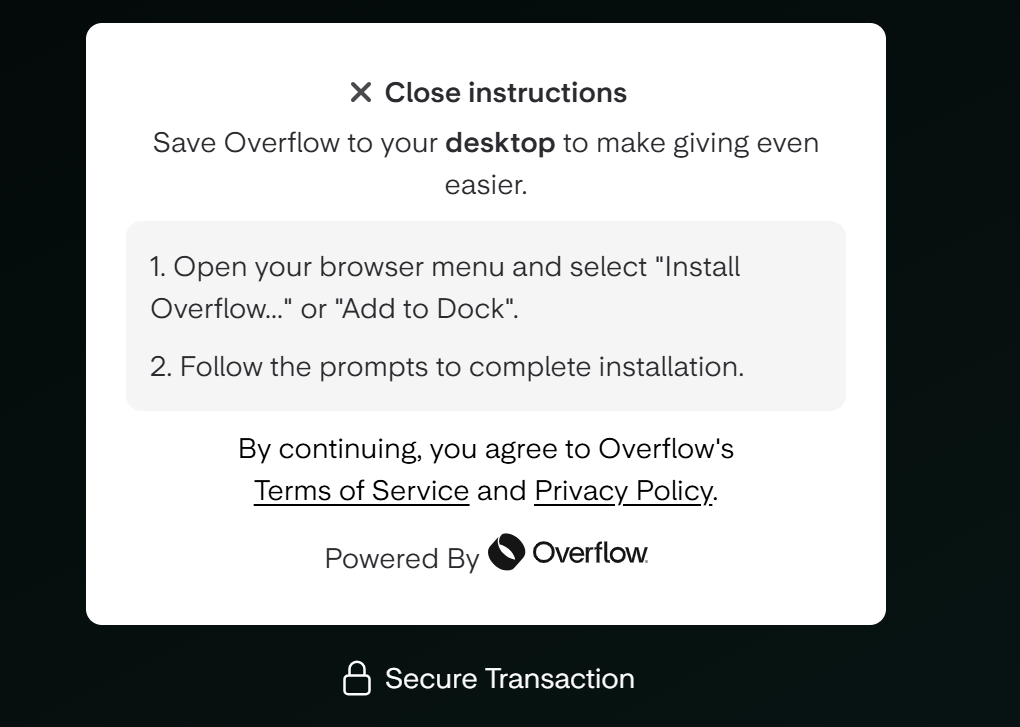
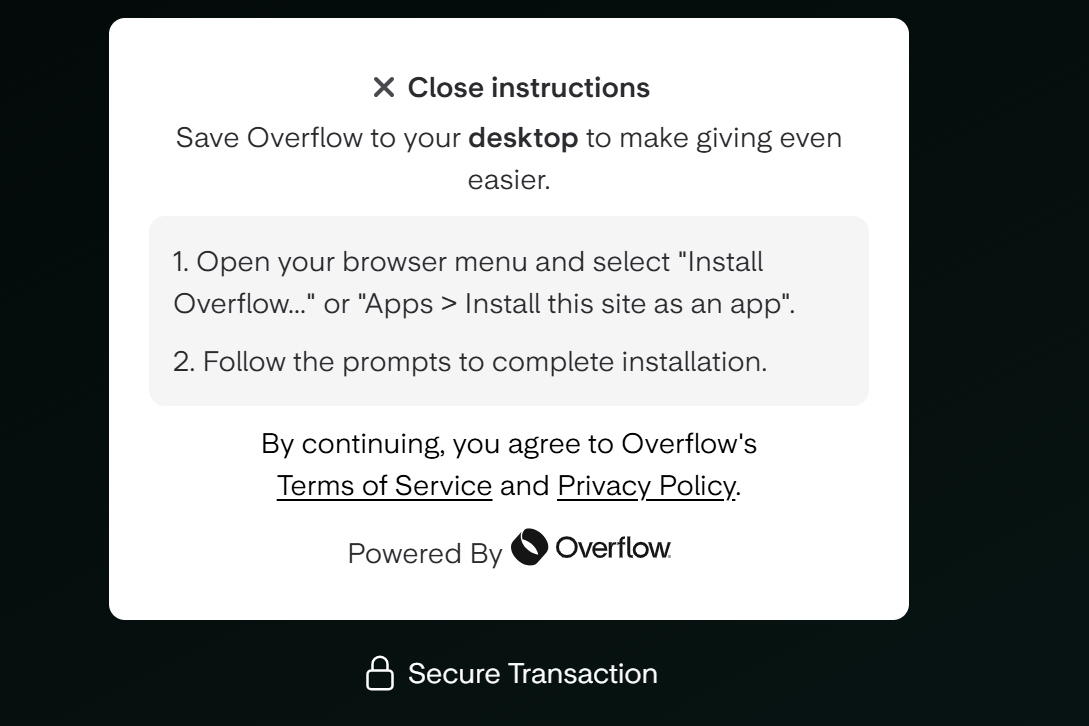
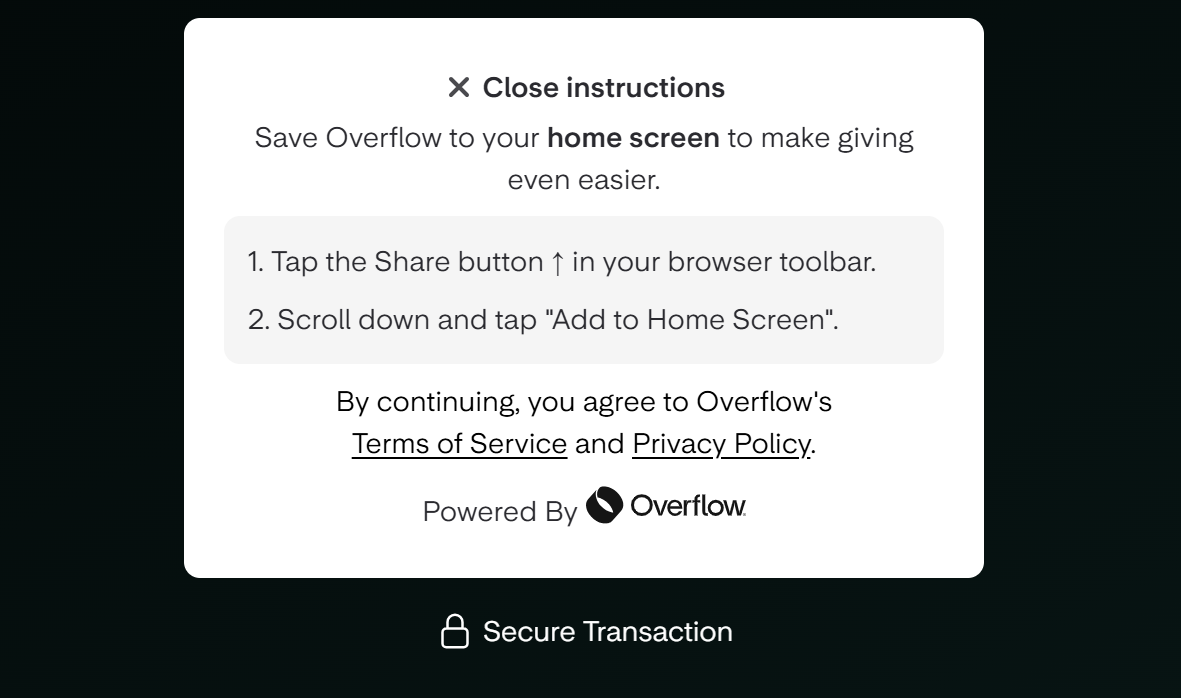
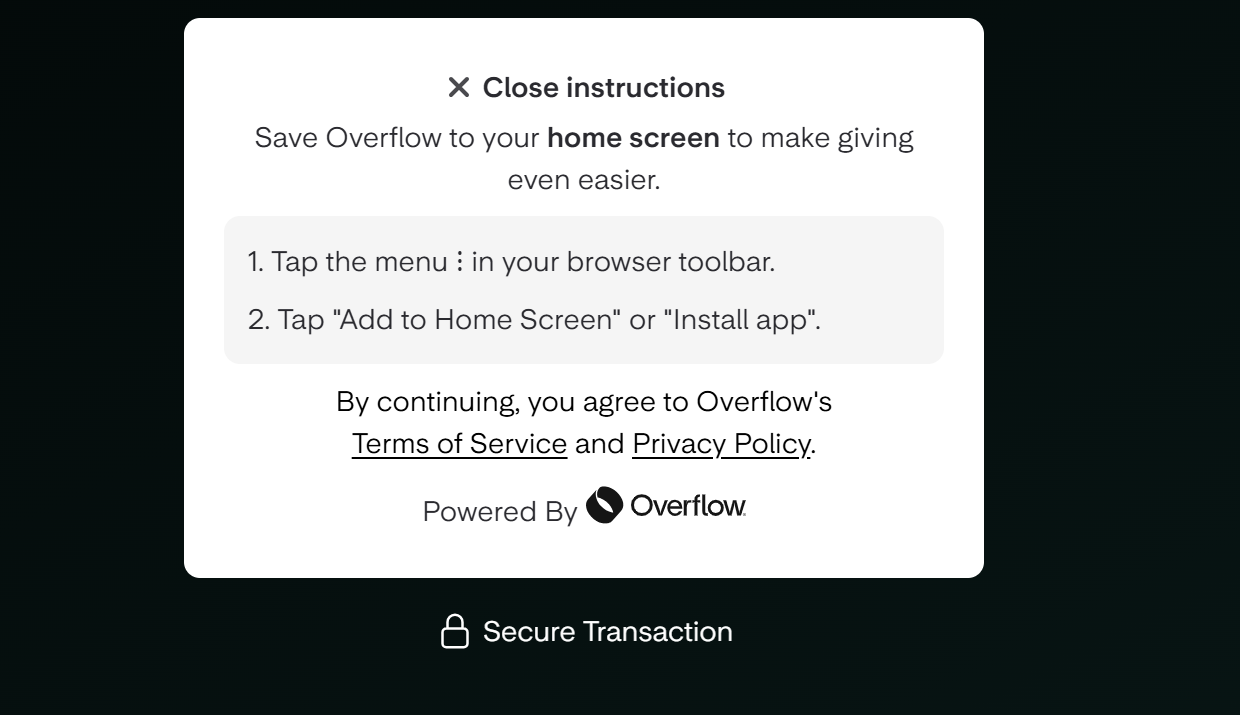
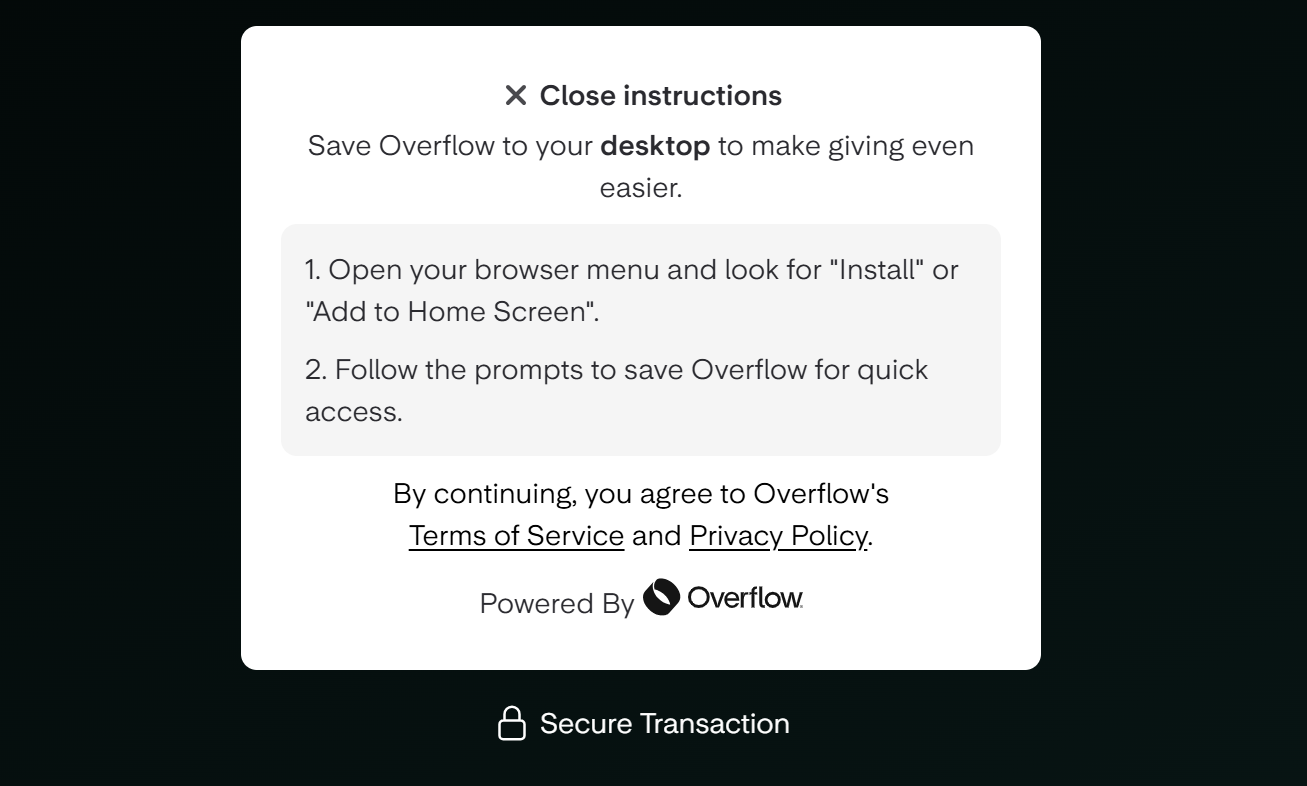
- 📱 Click the link to open the instructions panel. You'll see step-by-step instructions tailored to your specific device — available in English or Spanish!
- 🔖 Follow the steps to add the app or bookmark to your home screen or desktop, depending on what your browser supports.
- Once you're done, just click Close Instructions to close the panel.
(Click here to see example instructions!)
FAQs
Why Don't I See the Install Option on My Organization's Giving Page?
This feature is opt-in, so not all organizations have it enabled yet. Reach out to your organization directly if you'd like to ask them to turn it on.
Why Does the App Always Open to the Same Page?
The app always opens to your organization's main giving page. This gives you a reliable, consistent starting point every time. From there, you can quickly reach all giving options or your Donor Profile in just one click!
What if I Want to Remove the App?
No problem! You can uninstall it the same way you'd remove any other app from your device. Once it's removed, you can still give anytime by visiting your organization's website directly in your browser.
Is the App Paid, or Does It Require an Account?
No, installing the shortcut is free and doesn't require creating a new account. It simply gives you faster access to the giving page you already use.
My Organization's Name Looks Cut Off on the Icon. Is That Normal?
Yes, some devices and browsers shorten longer names when displaying the app icon or title. This doesn't affect how the app works.