Managing Your Recurring Gift
Last updated: September 24, 2026
If you've set up a recurring gift through Overflow, you can easily update or cancel it directly through your Donor Profile.
Editing Your Recurring Gift
Once you have logged into your Donor Profile, navigate to the Recurring Gifts module in the left sidebar.
Here, you will find an overview of your recurring gifts.
You can easily reference the benefiting organization, amount, start date, next scheduled contribution date, frequency, and payment method used.
For the recurring gift you'd like to edit, click on the ellipsis (⋯) at the end of the listing, and select Edit from the dropdown menu.

The Edit Recurring Gift pop-up window will appear. You can edit:
Amount
Frequency — Every 2 weeks, every month, or every week
📌 Start Date — Anytime you update your recurring gift, please choose a future start date. (You can select any date up to 30 days in advance.)
Campaign (and Subcampaign, if applicable)
Payment Method — You can either select a previously used payment method (automatically saved to your Donor Profile), or add a new credit/debit card or bank account.
Click the Save button to apply your changes.
Your Donor Profile will update immediately, and the changes will take effect for your next scheduled contribution.
Canceling Your Recurring Gift
Once you have logged into your Donor Profile, navigate to the Recurring Gifts module in the left sidebar.
Here, you will find an overview of your recurring gifts.
You can easily reference the benefiting organization, amount, start date, next scheduled contribution date, frequency, and payment method used.
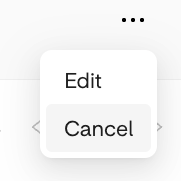
For the recurring gift you'd like to cancel, click on the ellipsis (⋯) at the end of the listing, and select Cancel from the dropdown menu.
📱 Depending on your device, the Cancel option might not be immediately visible. If you hover over the dropdown menu and scroll down, you'll find it listed under Edit.
The Cancel Recurring Gift pop-up window will appear. You will be prompted to select a reason for canceling your recurring donation (optional).
Click the Save button to apply your changes.
Your Donor Profile will update immediately, and the recurring gift will now appear under the Canceled Gifts tab.
Helpful Tips
We recommend making any changes at least 5 business days before your next scheduled gift, so everything has time to process smoothly.
Payment methods need time to sync up, especially for ACH donations, which may take a little longer to update.
⏩ Any new start date should be set in the future. (Choosing a past date may trigger 2 charges: an immediate one, plus the one already scheduled.)
We don't offer a pause feature, but you're welcome to adjust the date of your next scheduled gift. You're also welcome to cancel and restart your recurring gift whenever the timing works better.
Recurring gifts run on a set frequency, but the actual charge date can shift slightly, depending on how your payment method processes transactions.
💳 Credit/Debit Cards: Usually authorized right away, though final posting can take 1–3 business days. Weekend or holiday transactions may also see delays on your bank's end.
🏦 ACH Transfers: These pause on weekends and holidays. Anything initiated Friday, over the weekend, or on a holiday typically starts processing the next business day.