Navigating Your Donor Profile
Last updated: September 24, 2026
Your Donor Profile is your one-stop hub for managing your personal information, giving history, tax documents, and saved payment methods.
Overview
When you make your first donation through Overflow, we’ll create a personal account for you, called your Donor Profile.
This profile will be linked to the phone number or email address you used to give, which you’ll also use to securely log in and access your account.
You’ll receive a one-time verification code by text or email. (No need to set up or remember a password!)
You can also sign in with Google for a seamless login.
Most organizations choose to import historical giving, so you may already have a Donor Profile set up for you!
🔗 Why Can’t I Access My Donor Profile if I Only Donate by Cash or Check?
Access
You can easily access your Donor Profile from any browser on your phone, tablet, or computer. (Overflow doesn't have a dedicated mobile app.)
You’ll find the link in any donation receipt sent to you via email.
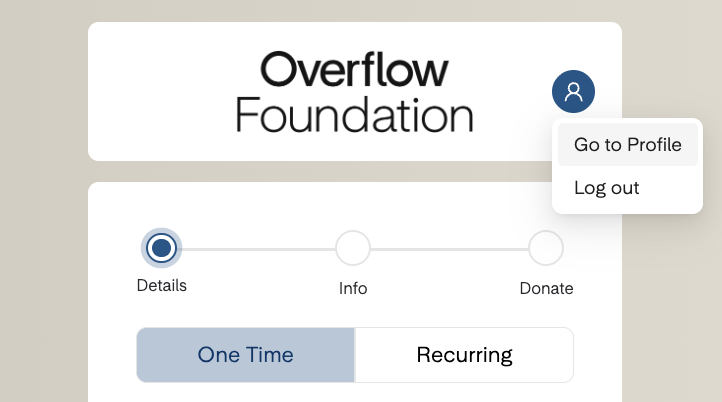
Connect to your online account (👤) throughout the giving process.
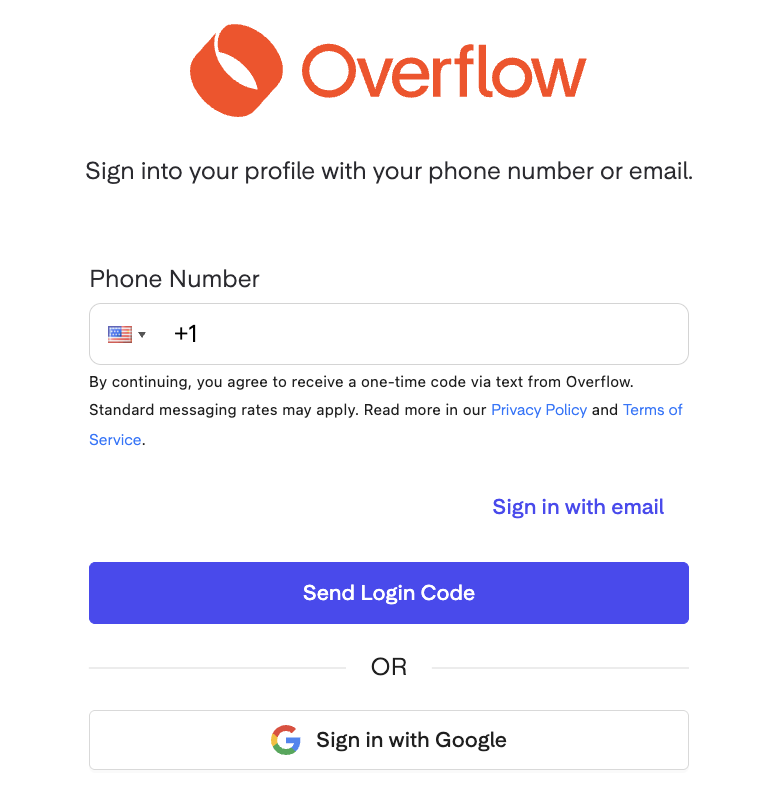
If you click Go to Profile before entering your verification code, you’ll be asked to sign in after being redirected.
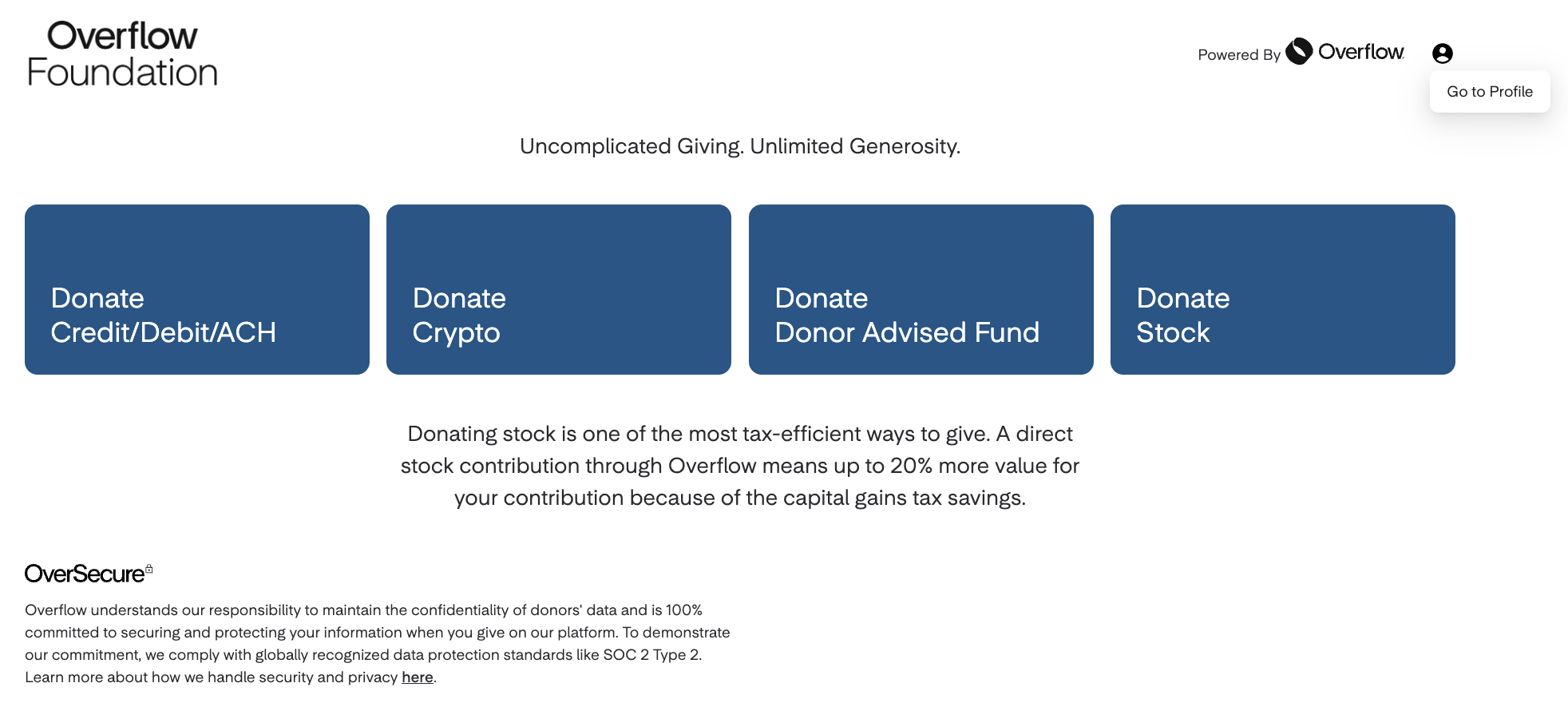
If you’ve already entered your verification code, you’ll be logged in automatically for the most seamless experience!
Access directly through this link: https://profile.overflow.co/. We recommend bookmarking it, so you can quickly view your account anytime.
Home
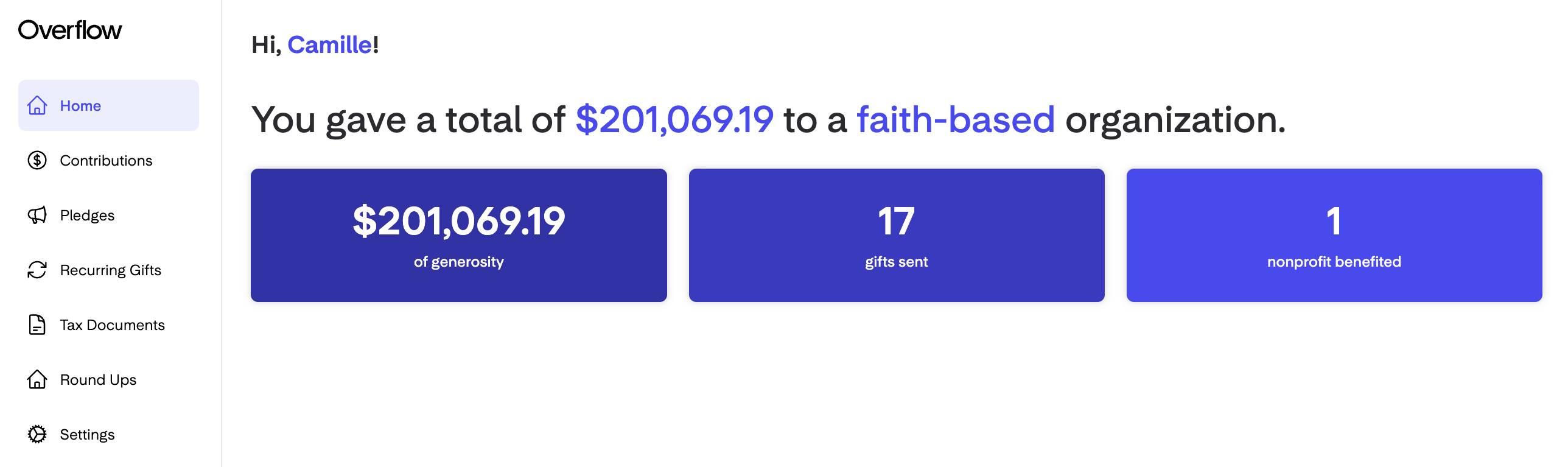
When you log in, the first page you’ll see is the Home page.
This gives you an overview of your total donations to date and the types of organizations you’ve supported. ❤
You’ll also see how your contributions grow over time, including the total amount donated, the number of gifts given, and the impact you’re making!
Contributions
The Contributions module shows all the donations you’ve made through Overflow, along with any imported gifts from a previous giving platform.

Contribution Details
You can scroll horizontally to see all gift details, or click on a specific donation to view it in a separate panel. For each donation, you’ll see:
Organization you donated to
Date the gift was made
Donation status
Type of asset donated (Cash, manual cash, stock, crypto, or DAF)
Confirmed donation value
🧾 The IRS requires an acknowledgment letter for any single donation exceeding $250. (If you haven’t received one yet, please reach out to your organization.)
Asset quantity or ticker (if applicable)
Designation (Campaign or subcampaign, if applicable)
Tax Deductibility
Extra Features
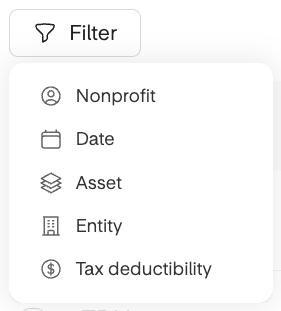
Filters: You can filter your contributions by nonprofit, date range, asset type, entity, and tax deductibility. This makes it easier to find a specific set of donations.
Export: You can export all your contributions, or just the ones you’ve filtered, as a CSV file. This makes it simple to view your contributions offline or analyze your giving data yourself.
Pledges
The Pledges module makes it simple to view and manage your pledges set up through Overflow. (We're unable import pledges from other giving platforms, so those won't appear here.
Pledge Details
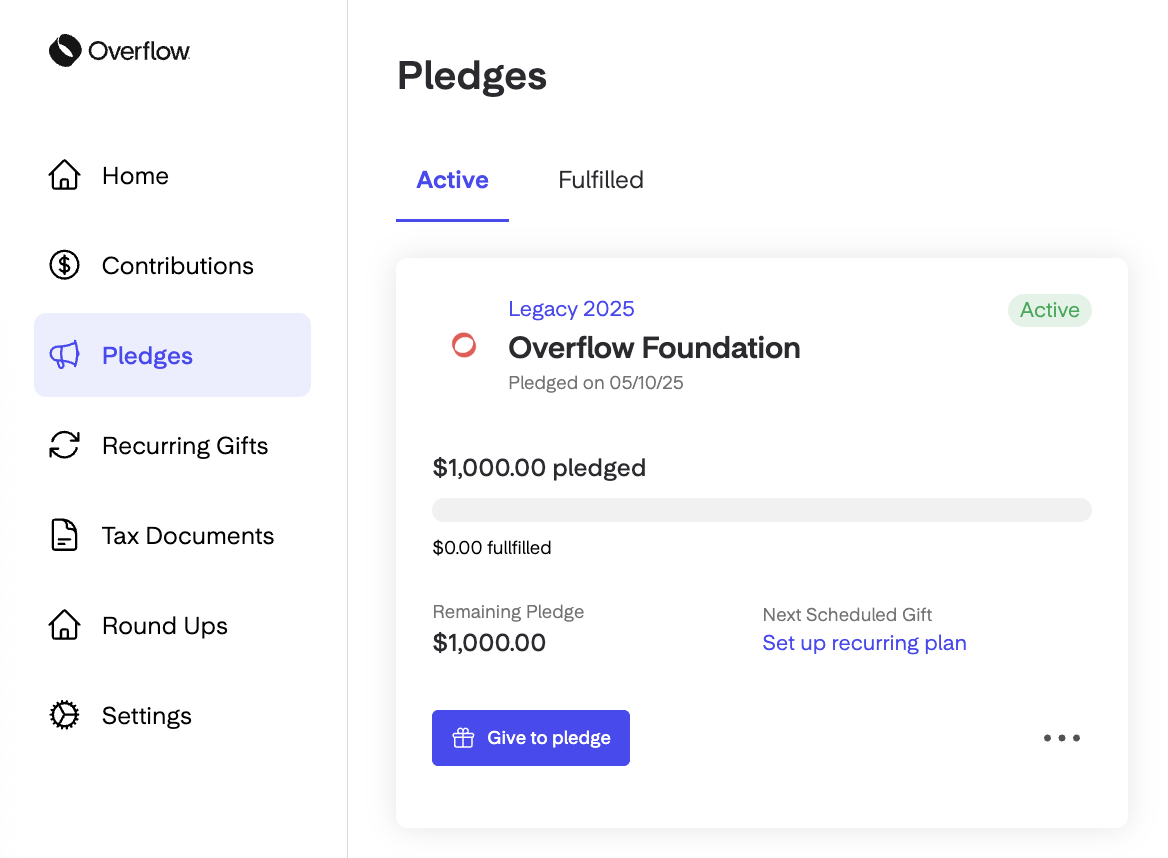
Here, you’ll see pledge details, such as:
Campaign and subcampaign (if applicable)
Organization you donated to
Date the pledge was made
Pledged amount
Pledge progress and balance
Next scheduled gift (if applicable) — For recurring plans only.
Quick Actions
You can give a one-time gift toward your pledge progress.

Click on the vertical ellipsis (⋮) to view the dropdown menu.
❌ Cancel Pledge: Cancels your pledge and automatically sends you a confirmation email.
💰 Edit Pledge Amount: Increase (or decrease) your total pledge amount anytime.
Recurring Gifts
The Recurring Gifts module allows you to easily manage both your active and canceled recurring donations.
Recurring Gift Details
Here, you’ll see gifts details, such as:
Organization you donated to
Amount
Start date
When you press Donate Now in the giving flow, you're only setting up your recurring gift preferences, Your payment method won't be billed until the start date you chose.

When setting up a recurring gift, you can only schedule the start date up to 5 days in advance for weekly gifts (or up to 30 days in advance for monthly gifts).
Frequency (Every 2 weeks, every month, or every week)
If your donations are scheduled for the 1st and 15th of each month, they’ll appear as 2 separate recurring gifts. This setup helps make sure each gift is processed smoothly on the correct date.
Payment method
Designation (Campaign or subcampaign, if applicable)
Quick Actions
🔗 Managing Your Recurring Gift
Tax Documents
Acknowledgement Letters
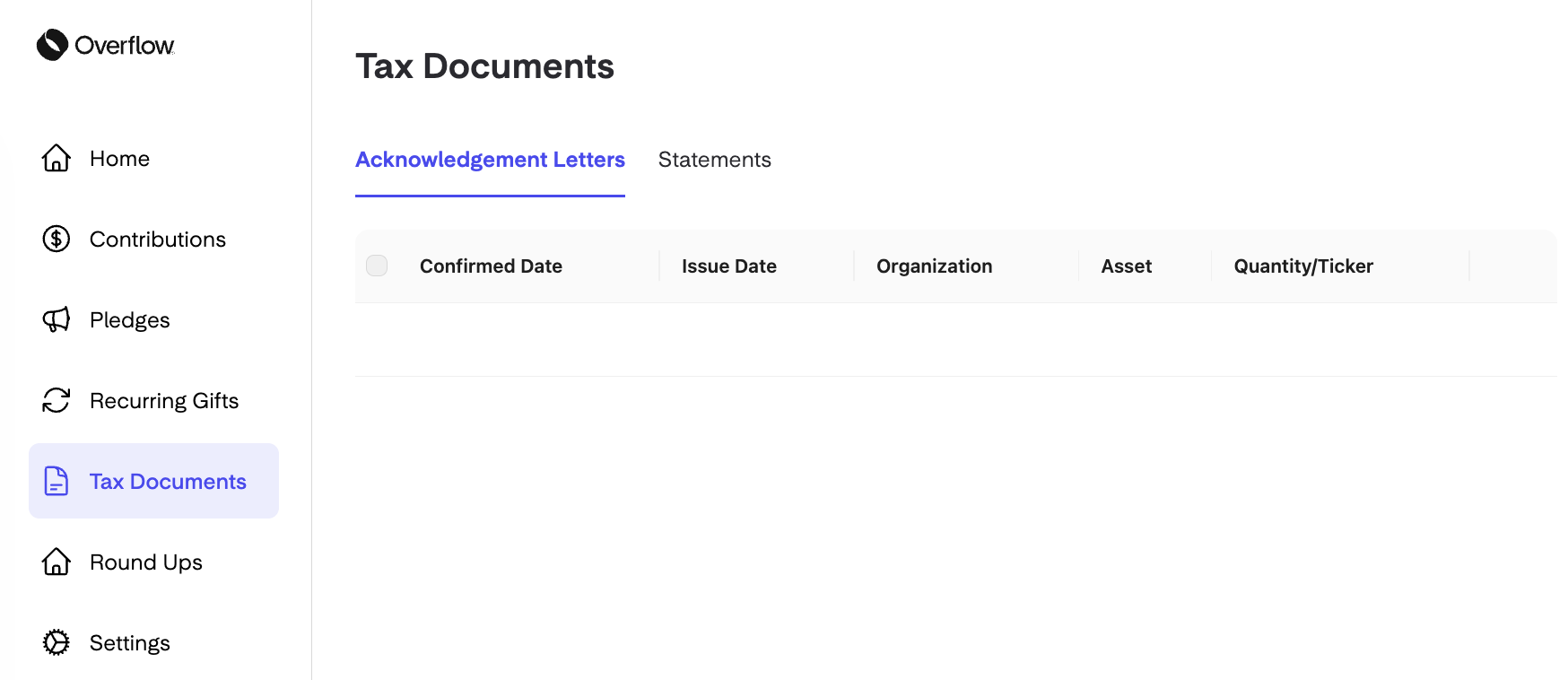
To download a letter for a specific donation, click the vertical ellipsis (⋮) at the end of that listing, then select Download.
📥 Bulk Download: Check the box next to individual contributions, or check the box next to the Confirmed Date heading to select all.
🔗 Everything You Need to Know About End-of-Year Giving
Statements
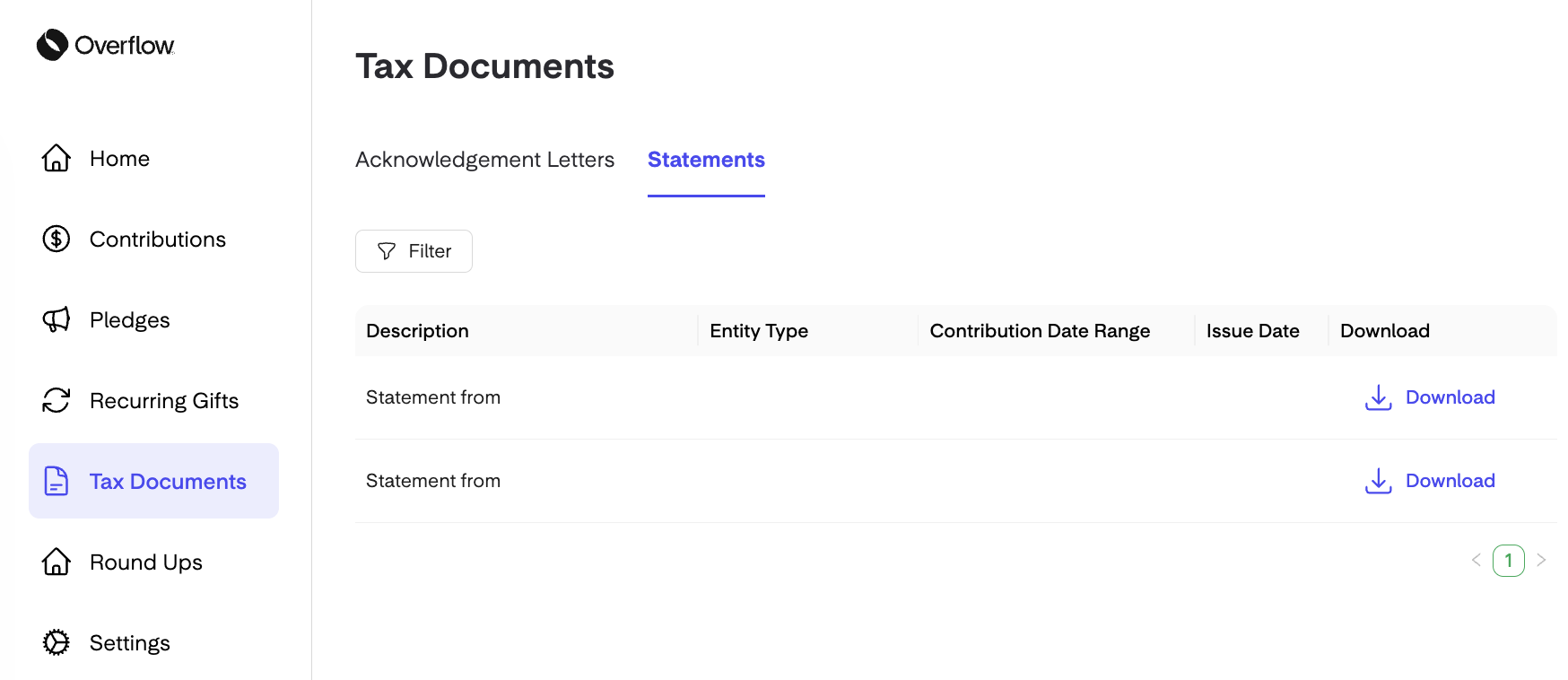
If your organization sends a statement through Overflow, you'll receive it by email. A copy will also be available to download here.
If this section is blank, it may be because your organization hasn't sent statements yet (typically sent by the end of January), or they issued them outside of Overflow.
Settings
The Settings module lets you manage your contact details, business profiles, and payment methods.
For your security, your organization isn't able to make changes to this information directly. If you'd like help updating it yourself, our Support team is happy to walk you through the process.
Account
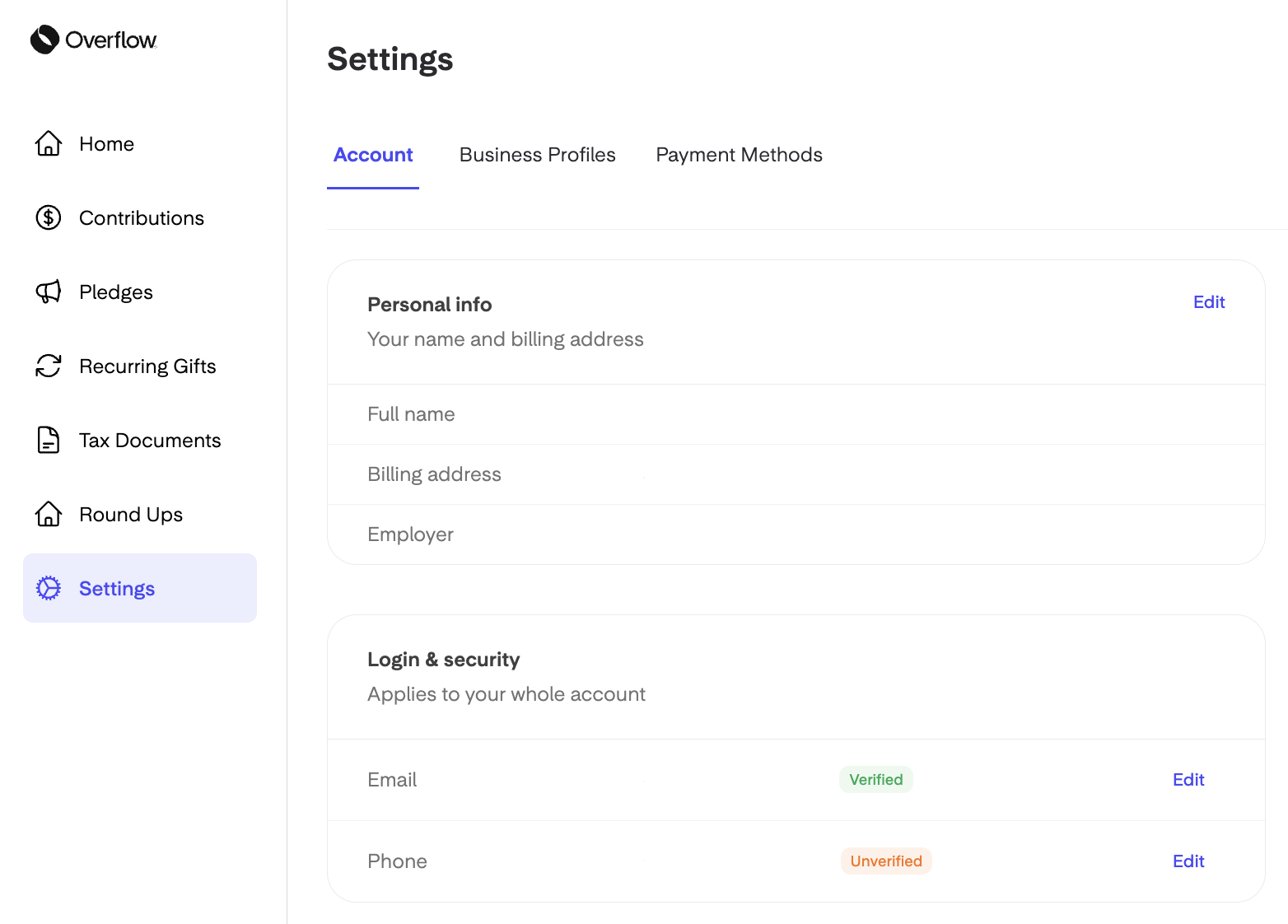
In this section, you can manage your personal information, such as your name, email address, and phone number. 👤
Personal Information
Name: Donor Profiles are designed for individual use, so there isn't a way to add a spouse's or child's name in a separate field. If you'd like both names to appear, just enter them together in the First Name field (e.g., John and Jane Doe).
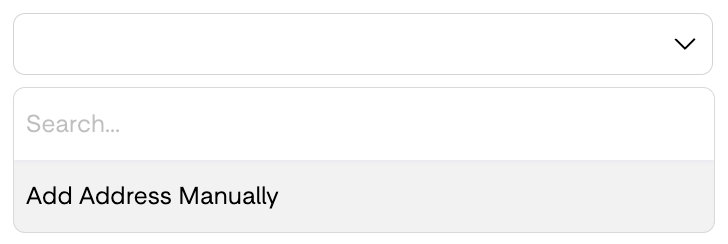
Billing Address: Can't find your exact address in the dropdown (e.g., it's missing your apartment number)? Select Add Address Manually at the bottom of the list to enter it yourself.
Login & Security
To help keep your account secure, we recommend verifying both your email address and phone number. (🔗 Trouble Receiving Your Verification Code?)
Email: Make sure your email address is typo-free and uses a valid domain.
Phone: Include your country code at the start of your phone number (🇺🇸 +1 for United States).
Business Profiles
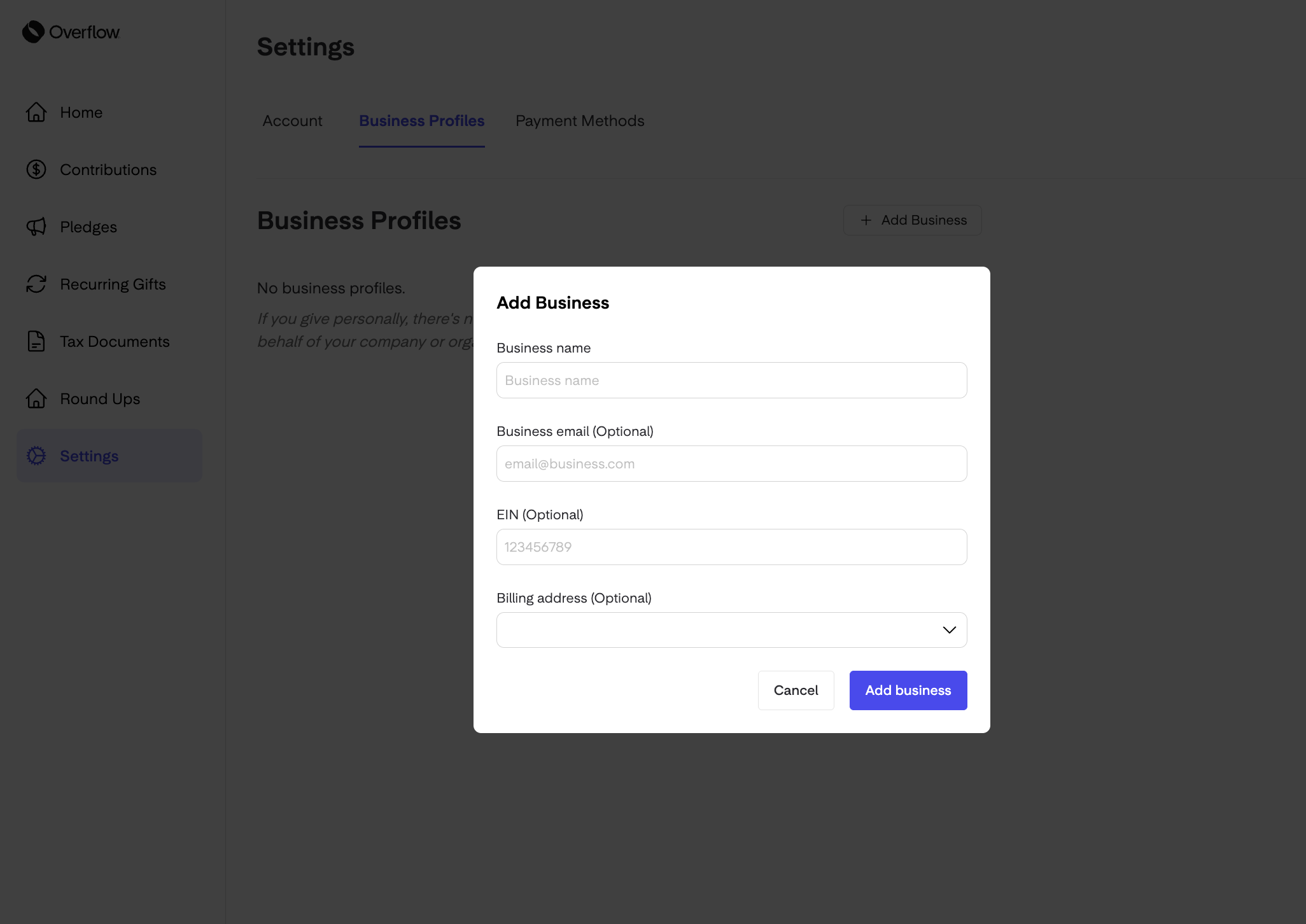
If you give on behalf of a business/organization, you don't need a separate account. You can simply link a business profile to your personal login,. Your business will still receive its own giving statement, issued under its name. 🏢
Payment Methods
New payment methods and updates to saved ones (like a new expiration date) are added through the donation flow. Simply make your next gift through Overflow, and it'll be saved to your account automatically. 💳
Managing Payment Methods
🔗 How to Add New Payment Methods
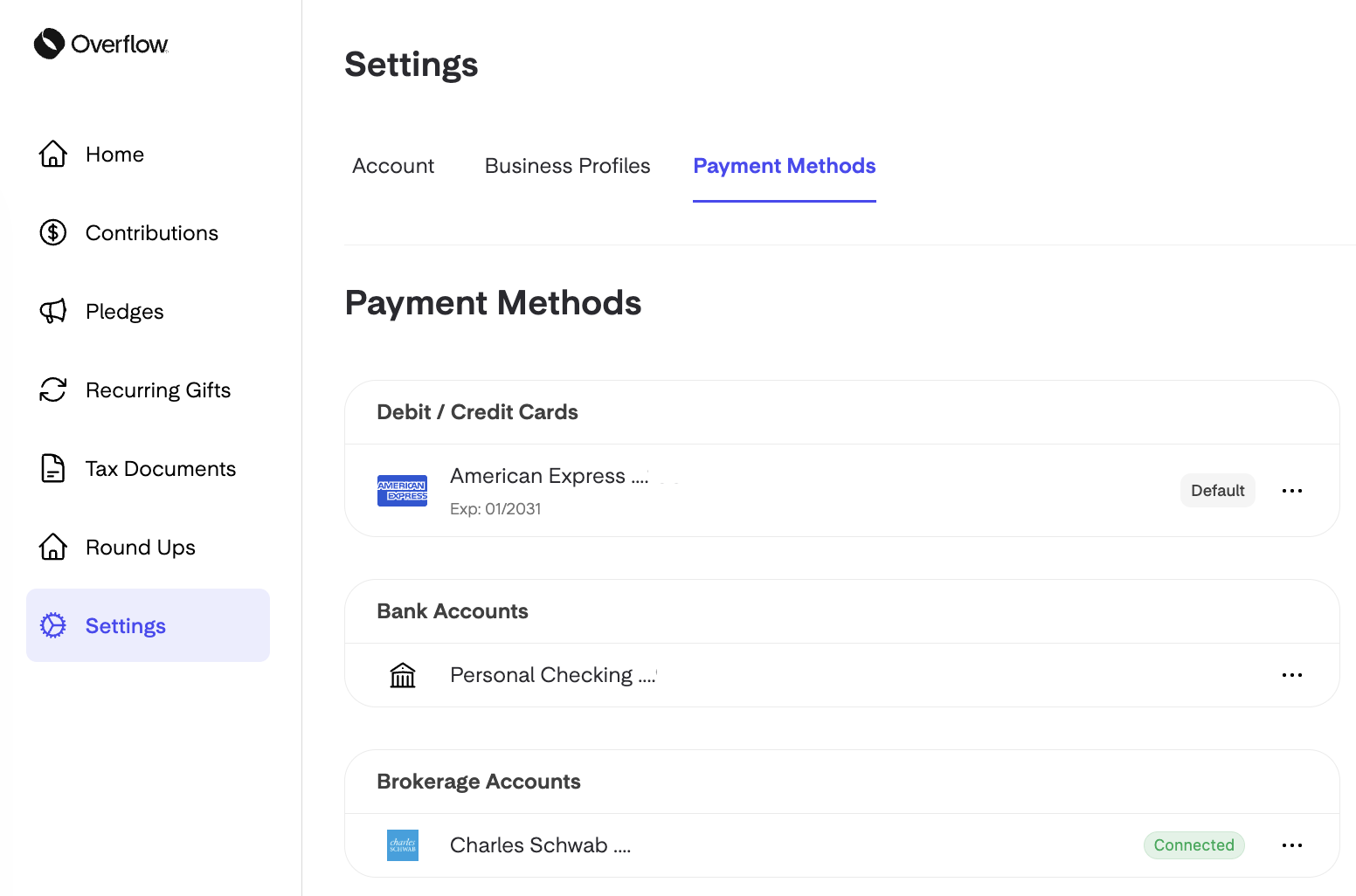
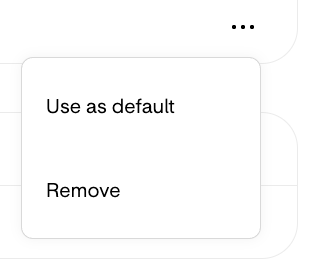
Click the vertical ellipsis (⋮) next to a payment method to:
Use as Default: Change the default payment method for all future cash gifts, including Text to Give.
Remove: Disconnect or remove a saved payment method anytime.
Virtual Account Number
If you connected your bank account through Plaid or Apple Pay, the last 4 digits of your account number may not display accurately.